
With Clear Labels, you have the option to use white ink as your base color so your prints can be opaque in some areas and transparent in others. With Bright Metallic Silver, white ink will hide the foil material to make solid colors.
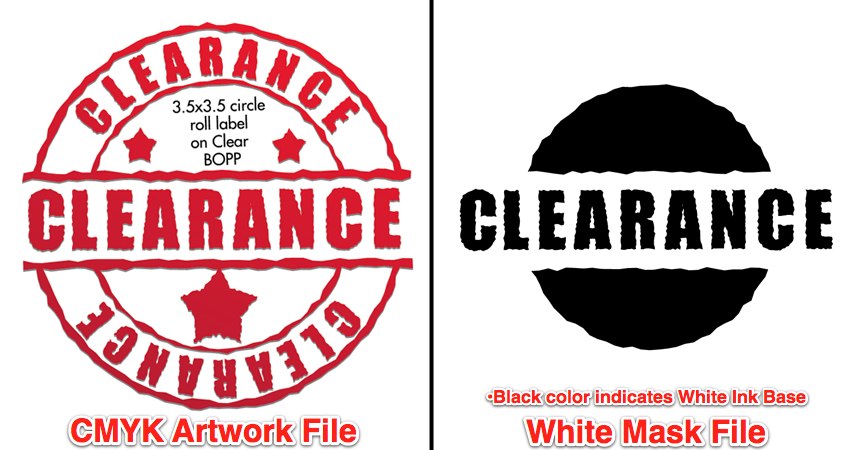
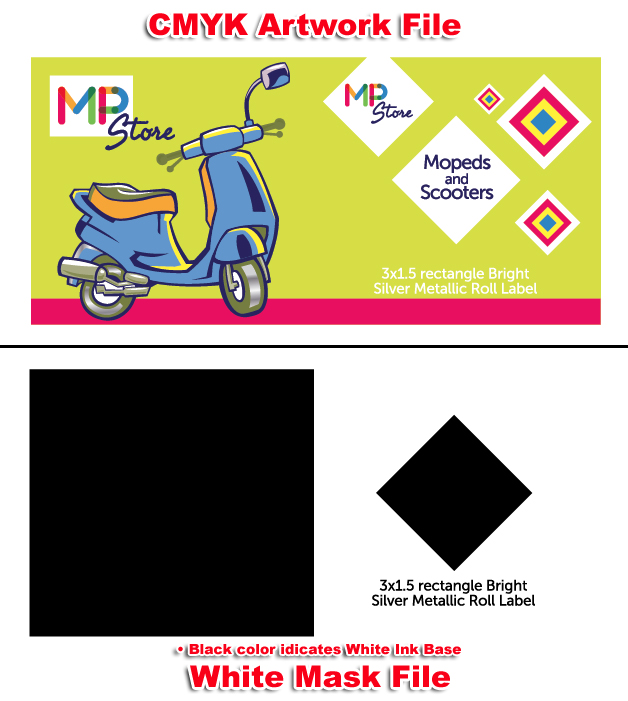
Similar to Spot UV masks, White Mask files are separate from your artwork files and Black color indicates where the white ink will print.
Make sure to create your mask file the same size as your color art file. This will prevent alignment issues during printing.
Note: White Masks must be made in vector form as shapes and be saved as EPS or PDF.
Use vector paths/shapes to create black color areas that will indicate where the white ink base will go. The rest of the area will represent the Metallic or Transparent label stock.
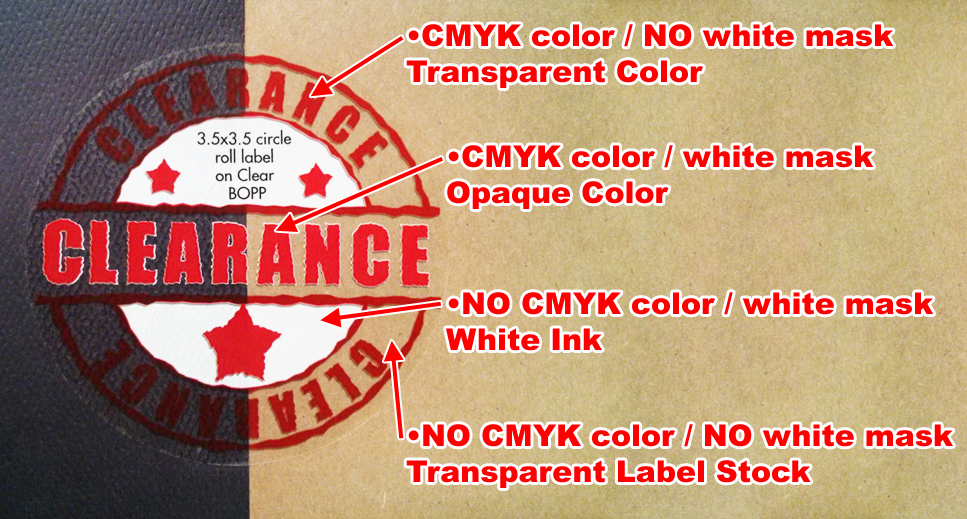
Here is a sample of a printed clear label with white ink. First how the artwork and white mask files look like, then a printed piece from these files:
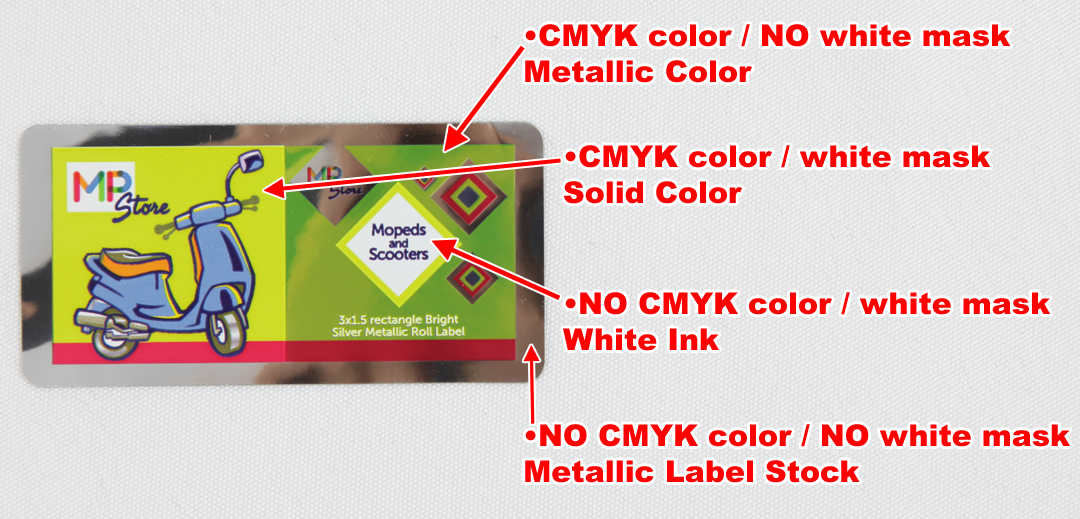
Here is a sample of a Bright Metallic Silver label with white ink. First how the artwork and white mask files look like, then a printed piece from these files:
Black in the white mask file indicates where white ink will be printed. Remember the following when creating a white mask for your white ink base:
• White ink base will be printed behind any color that’s in your Artwork Layer.
• Areas with color but without a White Mask will be printed with color directly on the material. This means Clear stock will have transparent color and Metallic stock will have Metallic color.
• Areas with color and a White Mask will be printed as opaque or solid color.
• Areas with a White Mask and no color will be printed as white.
Comments